Wireless
Why Your Office Wi-Fi Keeps Failing (It’s Usually Not the Access Points)
Most business Wi-Fi problems are design problems. Learn the common causes, from AP placement and channel planning to cabling and PoE.
By UTECH · · 3 min read
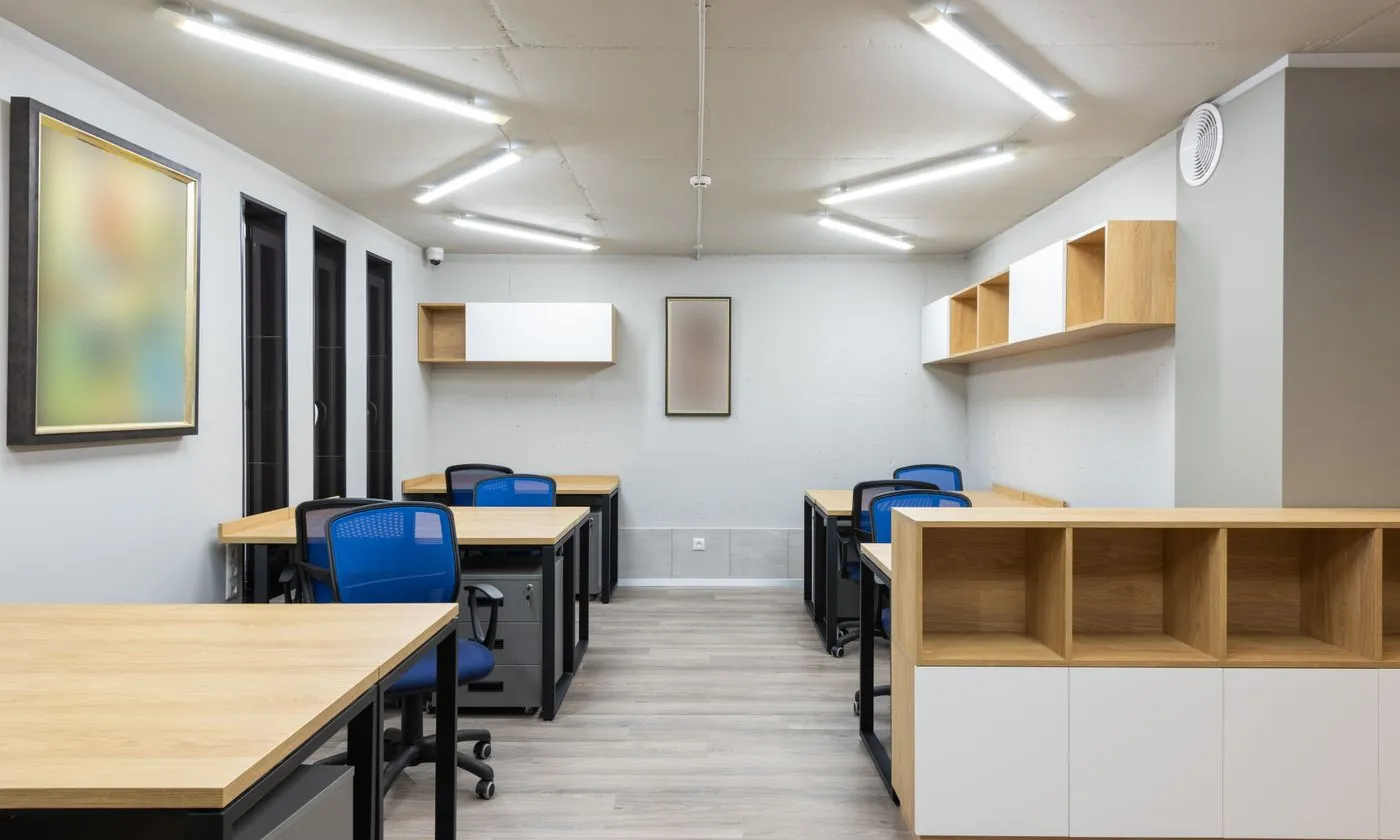
Most business Wi-Fi problems are design problems, not equipment problems. Expensive access points installed in the wrong places, on the wrong channels, or behind weak cabling will underperform cheaper gear that was designed properly. Good enterprise Wi-Fi starts with a plan, is built on solid wiring, and is verified after installation.
Symptoms and their usual causes
| What users report | What is usually behind it |
|---|---|
| Full bars but slow speeds | Too many devices per access point, or channel interference between your own APs |
| Calls drop when walking between rooms | Poor roaming design or APs placed too far apart |
| Dead zones in certain rooms | Walls, glass, elevators, or metal not accounted for in the design |
| Fine in the morning, terrible by noon | Designed for coverage, not for the number of people and devices |
| New APs slower than expected | Uplinks or switch ports limited by older cable or 1 Gb/s ports |
| Random disconnects | Insufficient PoE power, or too many network names (SSIDs) |
Design for capacity, not just coverage
“Can I get a signal?” is the wrong question. The right question is “Can everyone in this room do what they need at the same time?” A conference room with 30 people, each carrying a laptop and a phone, needs far more access point capacity than its square footage suggests.
Good design starts with:
- A floor plan with wall materials marked
- Expected users and devices per area
- What they do: video calls, large files, scanners, point-of-sale
- A predictive design in professional Wi-Fi planning software
Placement mistakes we fix most often
- APs in closets or above ceiling tiles, where the building blocks their signal
- APs mounted wherever the old ones were, regardless of how the space changed
- Too few APs turned up to full power, which causes interference and poor roaming
- APs placed next to elevators, mechanical rooms, or metal structures
Channels and the airwaves
Modern Wi-Fi runs on three bands:
- 2.4 GHz: long reach but crowded and slow. Best kept for legacy and IoT devices.
- 5 GHz: the workhorse for most offices today.
- 6 GHz (Wi-Fi 6E and Wi-Fi 7): wide-open spectrum with less interference, usable only by newer devices.
In busy offices, narrower channels usually perform better than the widest settings, because they let neighboring APs avoid stepping on each other. Fewer network names help too; every extra SSID uses airtime.
Wi-Fi runs on wires
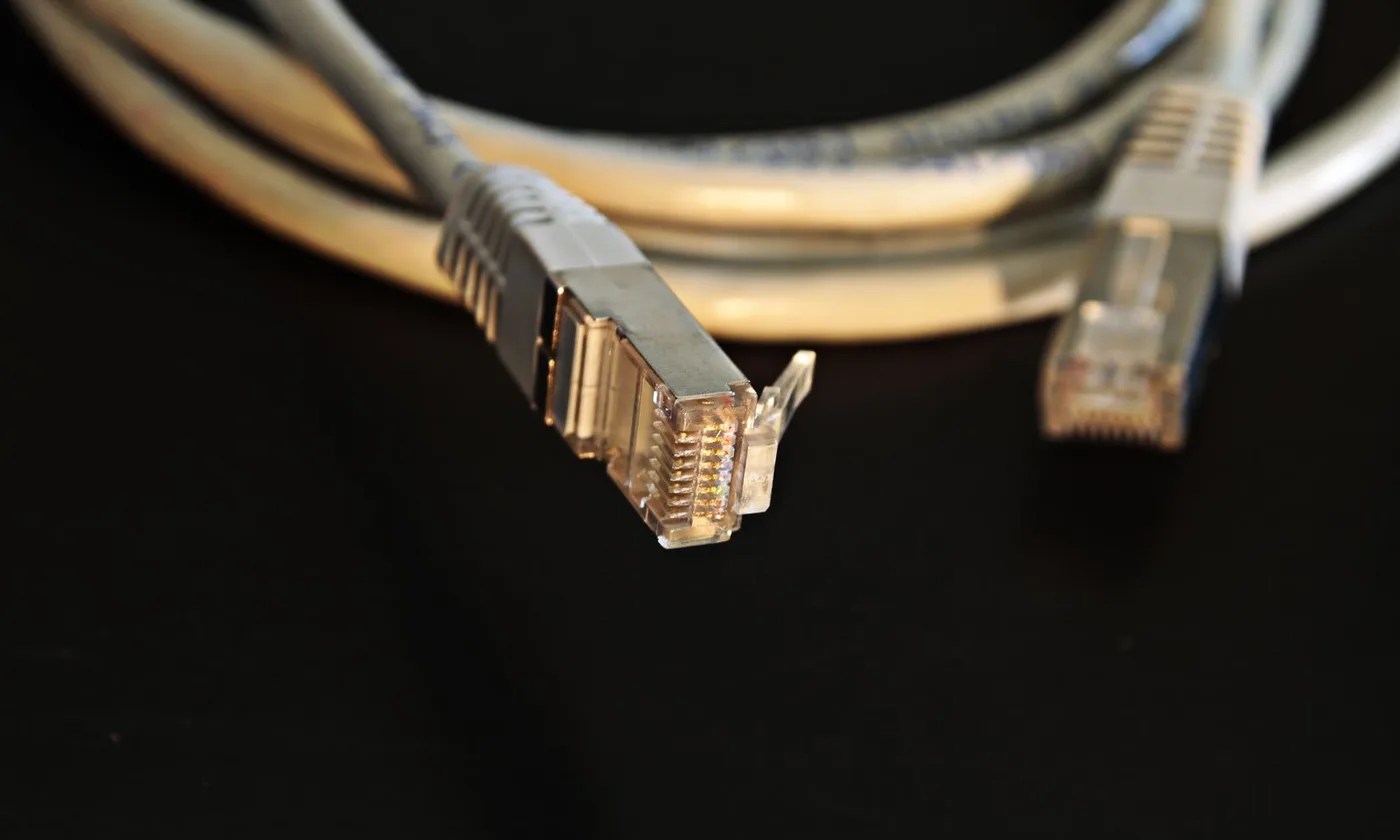
Every access point is a wired device. Weak cabling caps wireless performance:
- Cat6A to every AP location supports the multi-gig uplinks on current APs.
- Consider two cables per AP location in new construction, for future high-capacity access points.
- Multi-gig switch ports (2.5 or 5 Gb/s) let APs use their full uplink speed.
- Enough PoE budget on each switch. Newer APs draw more power, and an underpowered AP may shut off radios or features without warning.
Verify after you install
A design is a prediction. After installation, a validation survey walks the space and measures real signal, interference, and roaming behavior, then adjusts placement or settings where the building behaved differently than the model. Skip this step and you are guessing.
Security basics
- Use WPA3 where devices support it.
- Separate guest and IoT traffic from the corporate network.
- Keep AP firmware and controller software current.
Get Wi-Fi that works on day one
UTECH designs, cables, installs, and validates enterprise Wi-Fi for offices, retail, and multifamily buildings across New York, New Jersey, and Pennsylvania. Contact UTECH to fix a network that is not keeping up, or to plan the next one right.